
Met Bot Quick Start!
Step 1: Find and Start the Bot
Search for AgentMetBot in the Telegram search bar, and click on the first option.
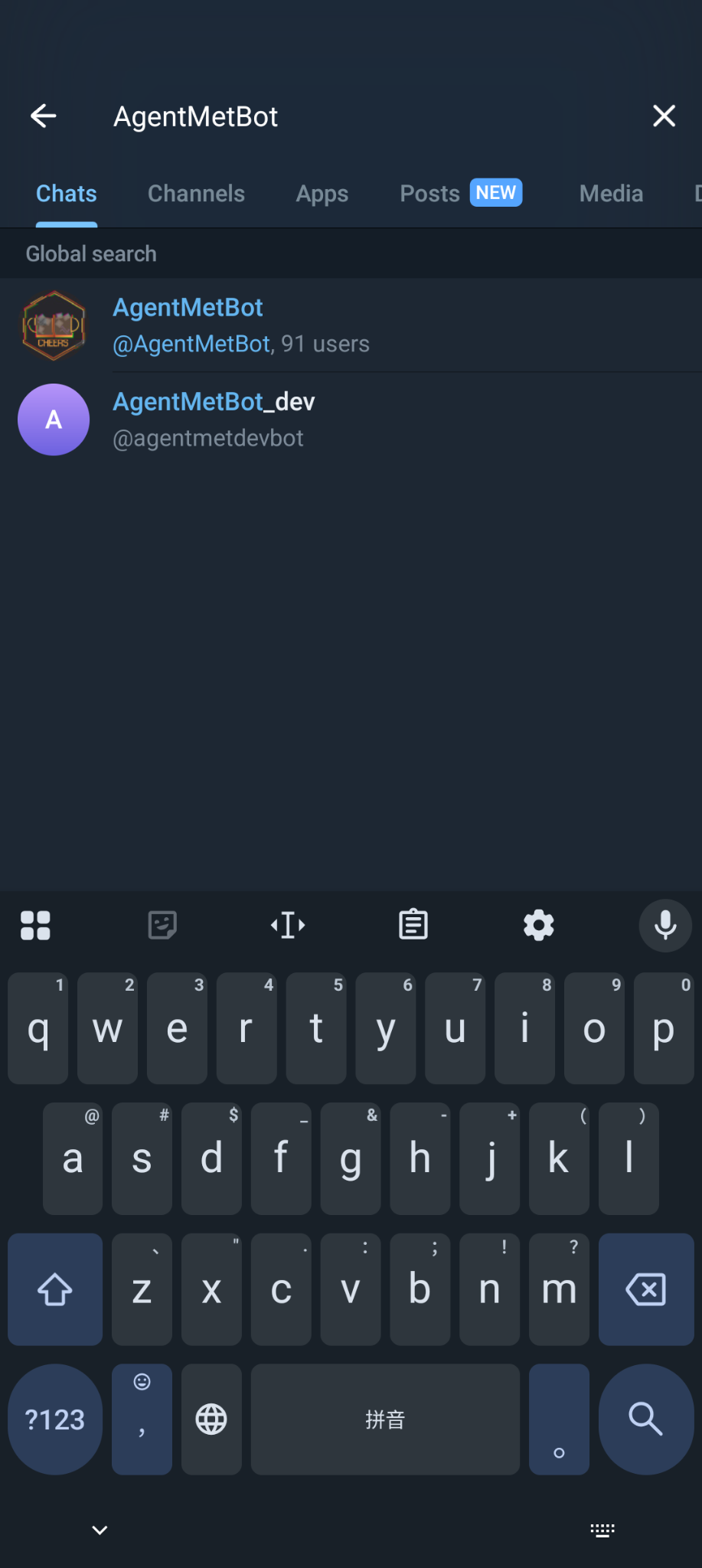
After starting the bot, the system will automatically register your account (status: pending).
💡 You can click
/helpto view help information.
Step 2: Set Your Telegram Username (Recommended)
Please first confirm whether you have set a Telegram Username.
This is very helpful for others to initiate met requests with you!
📌 Note: You can still meet up without setting it, but others will need to manually enter your full game ID, which is more troublesome.
Step 3: Set AgentName (Private Chat)
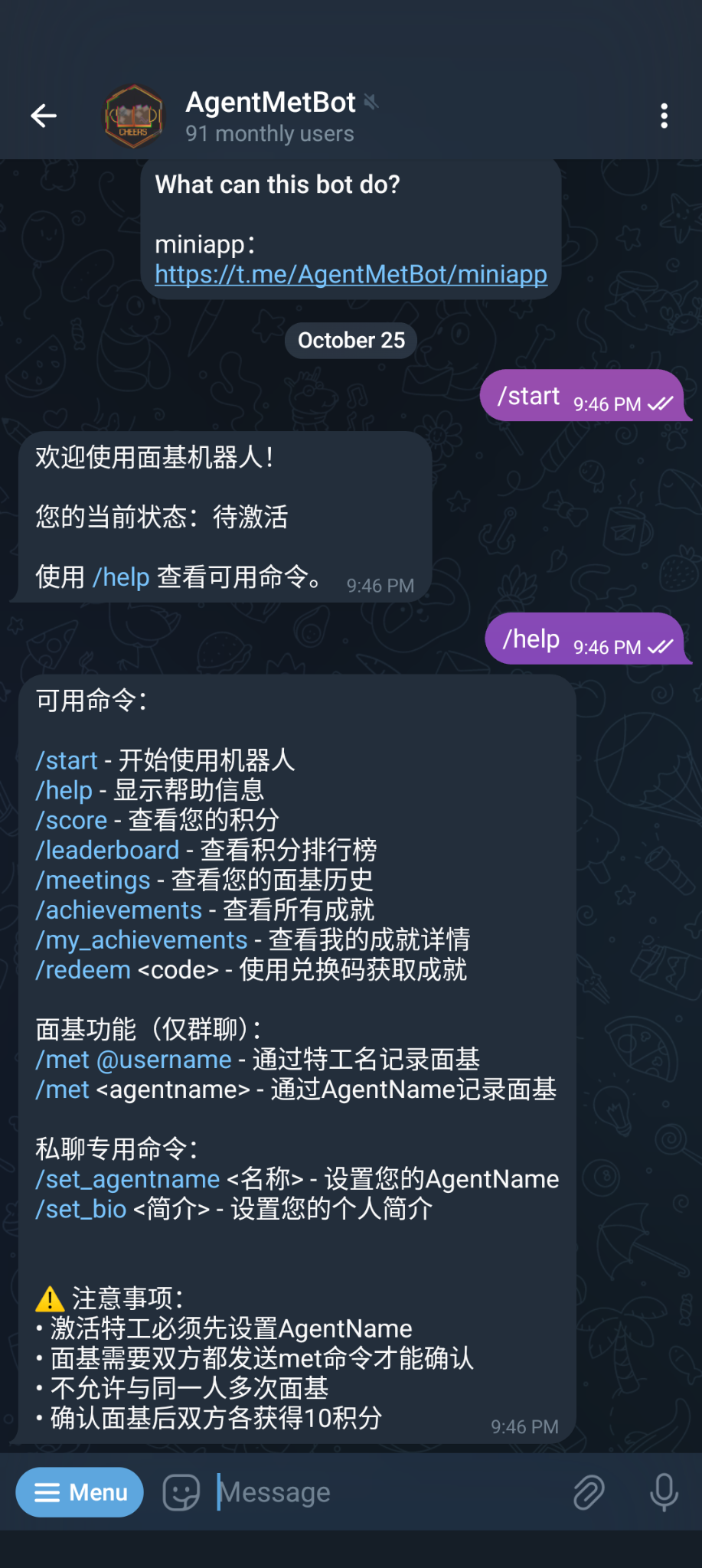
Chat privately with the bot and use the /set_agentname command to set your game ID.
AgentName Format Requirements:
- 3-15 characters
- Letters and numbers only
- No special symbols or spaces
⚠️ Note: This command can only be used in private chat, and cannot be modified after activation.
Step 4: Select Community and Apply for Activation (Private Chat)
After setting your AgentName, use the /bind command to apply for account activation.
Process:
-
Select Community The bot will first list all available communities. Please select the community in your region.
-
Select Administrator After selecting a community, all administrators in that community will be displayed. Please select an administrator who knows you to activate your account.
✅ Make sure the administrator you choose knows you, otherwise your application may be rejected!
Administrators by Region (Reference):
- Northeast China: FushimiHikoniwa
- Beijing: xana233
- Greater Bay Area: Davida / YogaLee17
- Hubei/Hunan: eastx / LY128
- Shanghai: ODBLK / CA49LACHS
- Southwest: NotRealNicad / TaoChingChung / icecrEEEEam
- Central/Northwest: prpr9
- Fujian: W7lww
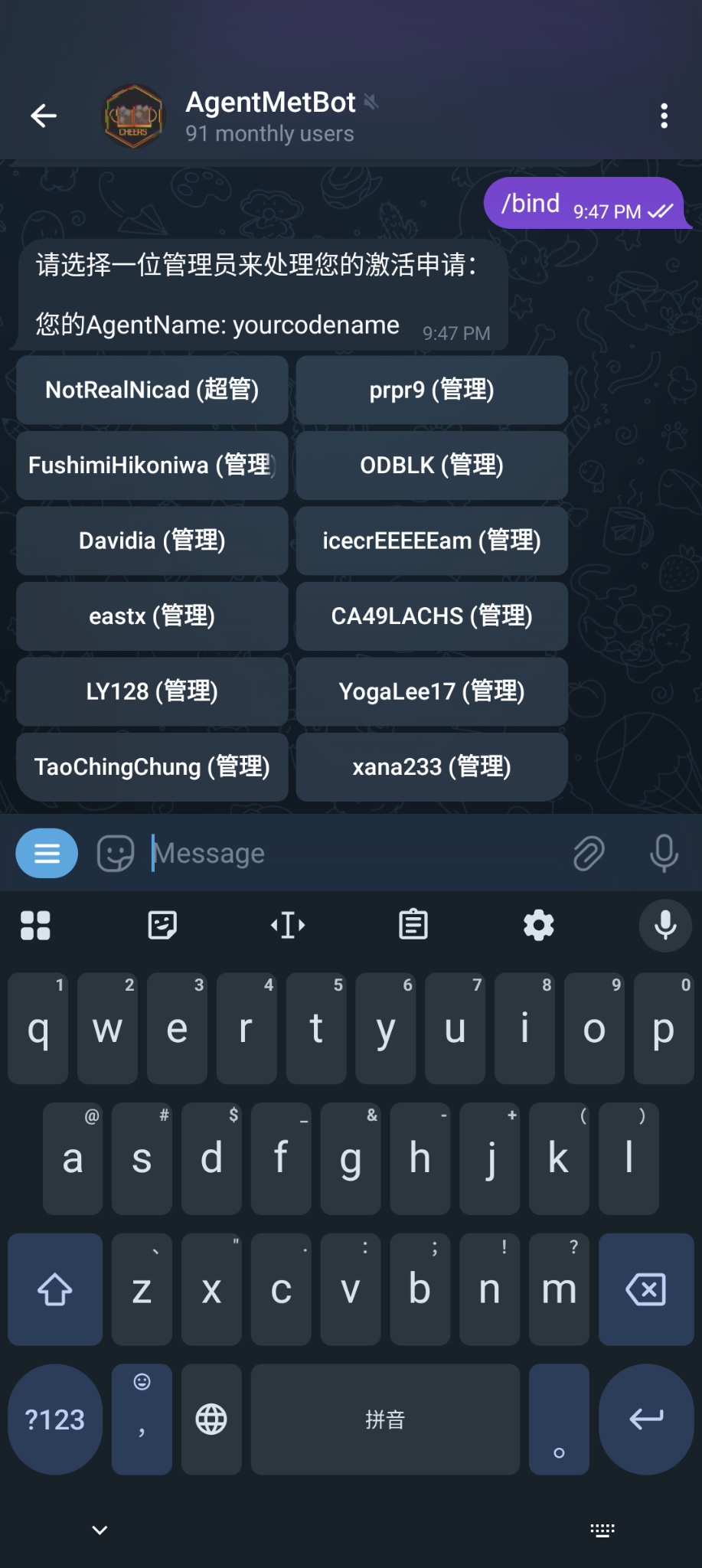
After clicking on the corresponding administrator, please remind them to approve your verification in person or in other groups. Although the bot will push verification messages, admins may not check them in time.
Step 5: Wait for Administrator Activation
After the administrator receives your application, they will verify your identity. The administrator will see:
- Your AgentName
- Your Telegram Username
- Your registration time
- Your Ingress Intel link
If confirmed that you are a real agent, the administrator will click the "Approve" button.
After successful activation, you will receive a notification and can now use all features!
Step 6: Initiate a Met!
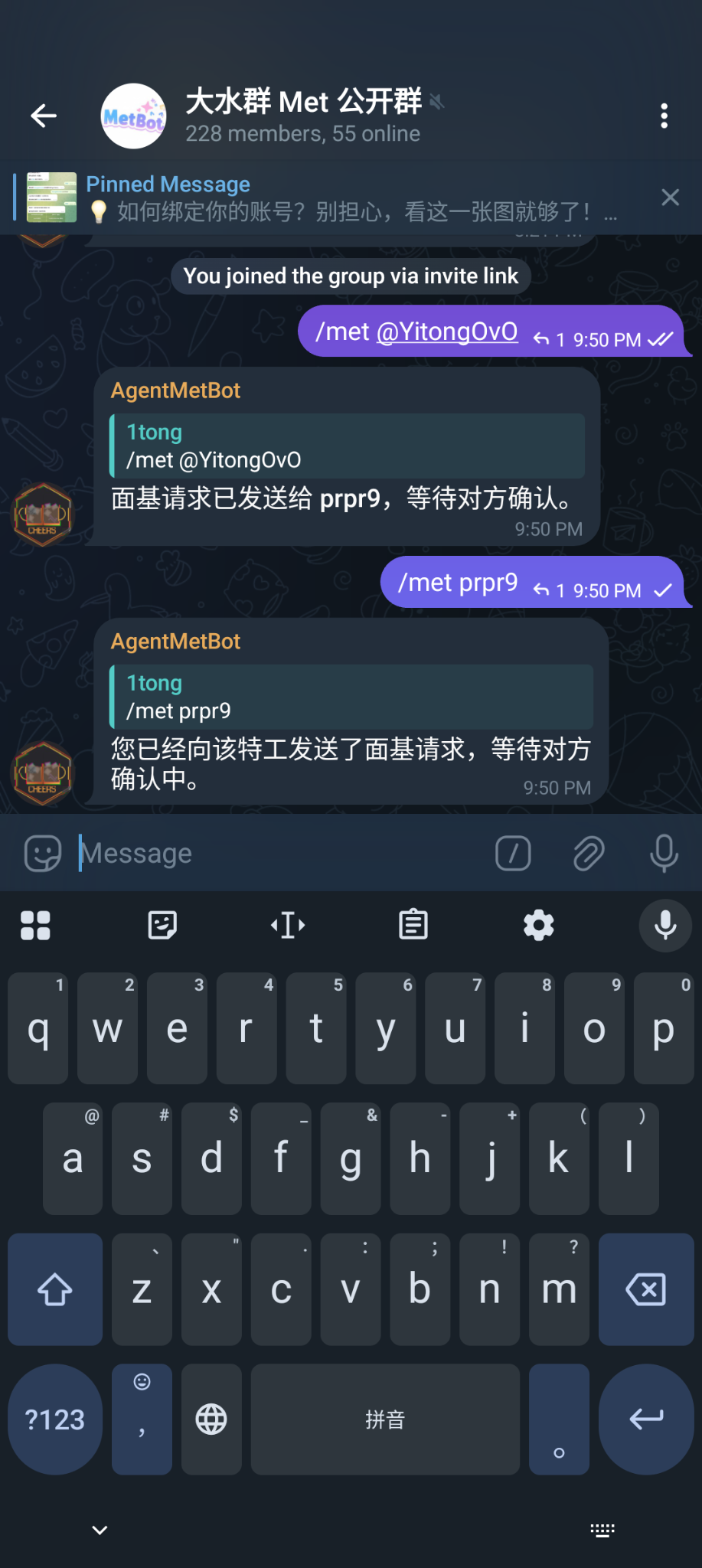
After successful activation, you can initiate meet-ups in groups that have the bot.
Ways to initiate:
-
Using the other person's Telegram Username (Recommended)
If you're in the same group, it can auto-complete, which is very convenient!
-
Using the other person's AgentName
-
Reply to message (Most convenient) Simply reply to their message and type:
⚠️ The
Metcommand must be used in a group, but cross-groupmetis supported.
Step 7: Confirm Met Request
When someone initiates a met request with you, the bot will send you a private notification.
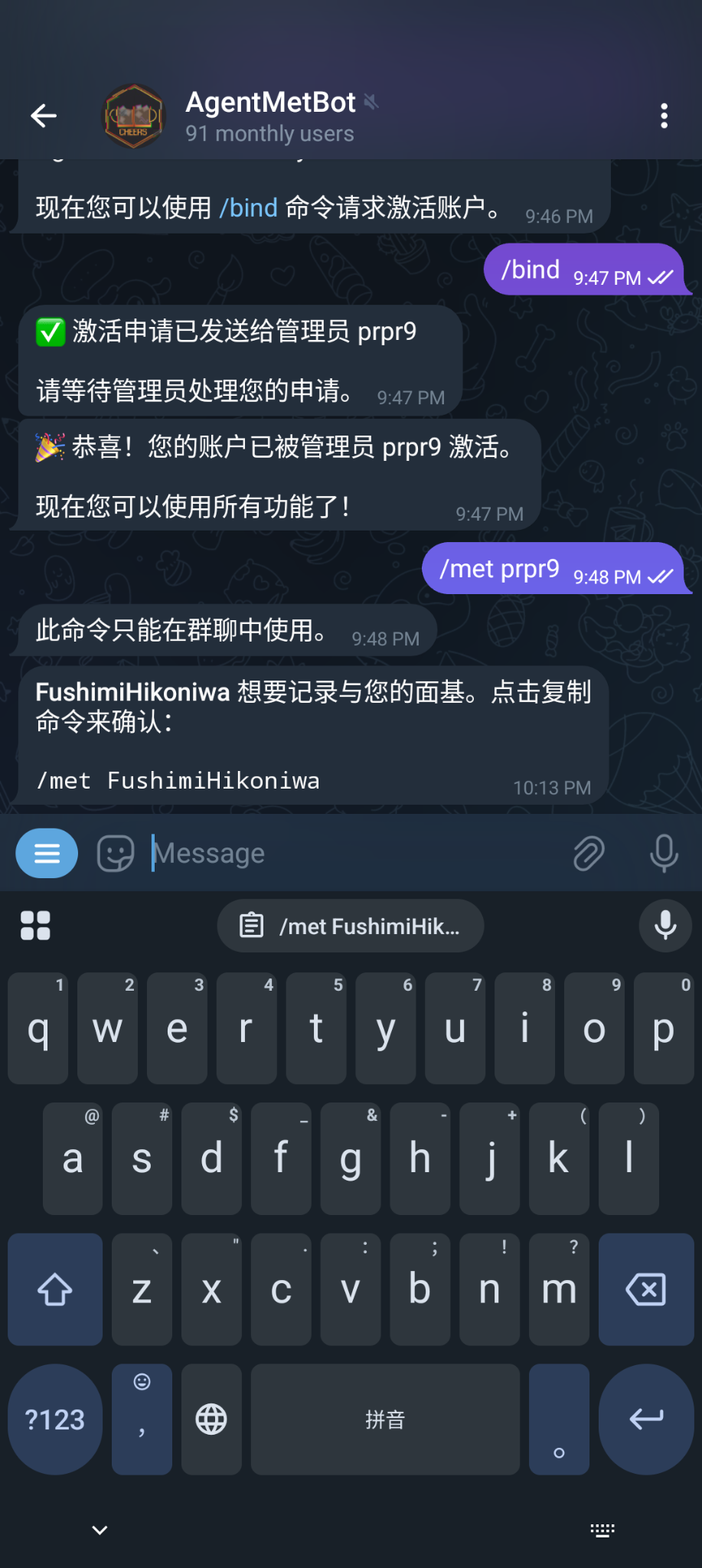
Steps to follow:
- Click on the
/met xxxxxtext in the notification message (don't manually select and copy!) → This will automatically copy the command to your clipboard. - Go to a group that has the bot, paste and send the command.
✅ Congratulations! You've completed a successful meet-up! Both parties receive 10 points!
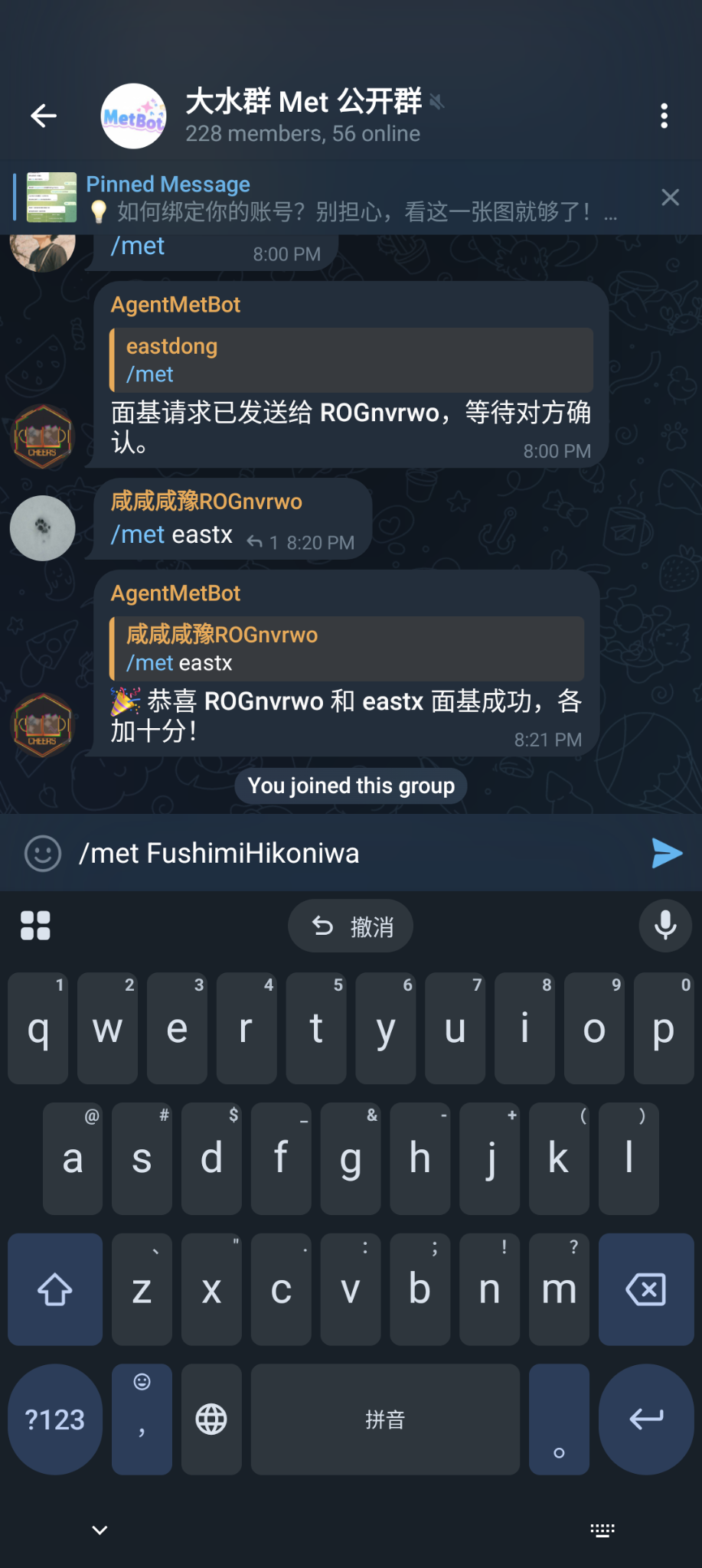
⏰ Note: Met requests expire after 24 hours, after which you need to re-initiate.
Other Common Commands
View Personal Information
/whoami- View your profile, points, and achievements/score- View your current points/my_achievements- View your achievement list
Query Others' Information
/whois @username- Query another agent's information
Meet-up Records
/meetings- View your meet-up history/leaderboard- View the points leaderboard
Achievement System
/achievements- View all available achievements/redeem <code>- Use redemption codes to get special achievements
Personal Settings
/set_bio <bio>- Set your personal bio (max 200 characters)/set_language- Change bot language (Chinese/English/日本語)
Group Admin Commands
If you are a Telegram group admin, you can use the following commands to manage the group:
Met Function Management
/enable_met- Enable met function in this group/disable_met- Disable met function in this group/group_status- View group settings status
Member Management
/invite @usernameor/invite <agentname>- Invite user to group (valid for 8 hours)/set_group_language- Set group language
Welcome Message
/set_group_greeting- Enable/disable new member welcome message
FAQ
Q: Why can't I use the /met command in private chat?
A: The meet-up function is designed as a group activity and must be used in a group with the bot. However, met requests are notified through private chat.
Q: What if my met request expires?
A: If you don't reply within 24 hours of receiving a met request, it will expire. You can:
- Wait for the other person to re-initiate
- Initiate a met request yourself
Q: Can I meet up with the same person multiple times?
A: No. Each pair can only meet up once, to encourage everyone to meet more new friends!
Q: What's the use of points?
A: Points are a reflection of your activity in the meet-up community. You can see your ranking on the leaderboard. Points also increase as you unlock achievements.
Q: How do I get achievements?
A: Achievements can be obtained through:
- Participating in offline meet-up activities
- Using redemption codes (released by admins)
- Participating in community activities
Q: Can AgentName be modified?
A: No. Once your account is activated, AgentName cannot be modified. Please set it carefully.
Q: After selecting a community, must I choose an administrator from that community?
A: Yes, you need to select an administrator from the chosen community to activate you. Please choose an administrator who knows you and whom you know.
Tips
- Record your meet-up moments with others! Have a great meal together~
- Don't have virtual meet-ups (i.e., submitting met without actually meeting in person)!
- If you have questions, you can privately chat with the bot and use
/helpto view the complete command list